Setting up IPTV for the first time usually takes 10 to 30 minutes, depending on your device. Even if you’re not very technical, the process is simple once you follow the right steps.
This guide explains everything clearly—what app to install, how to enter your login details, and how to fix common issues like buffering or incorrect channel timings.
Before you begin, make sure you have an active IPTV subscription or trial. After signing up, you’ll receive your login details (either an M3U link or Xtream Codes) by email.
If you're planning to choose a reliable service, you can explore options like
IPTV Kopen Nederland where providers typically offer iDEAL payments, Dutch-language support, and pricing between €15 and €25 per month.
Start by installing IBO Player from the Apps section on your Samsung TV. Simply search for it and install.
Once installed, open the app and choose to add a playlist. Enter your M3U link or Xtream Codes credentials, then confirm. Your channel list will load within a minute.
One important step many users miss is fixing the timezone. Go into settings and set it to Europe/Amsterdam. Without this, Dutch channels may show incorrect timings.
To improve daily use, create a favorites list with channels like NPO 1, RTL 4, and ESPN. This avoids scrolling through hundreds of channels every time.
On Fire Stick, search for and install IPTV Smarters Pro directly from the Appstore.
Open the app, select “Add New User,” and enter your IPTV credentials. The channels will load automatically.
For advanced users, TiviMate offers features like multi-screen viewing, but it requires sideloading. If you prefer a simple setup, Smarters Pro is enough.
If you face buffering issues, try switching from WiFi to ethernet. In many real cases, this single change completely fixes streaming problems.
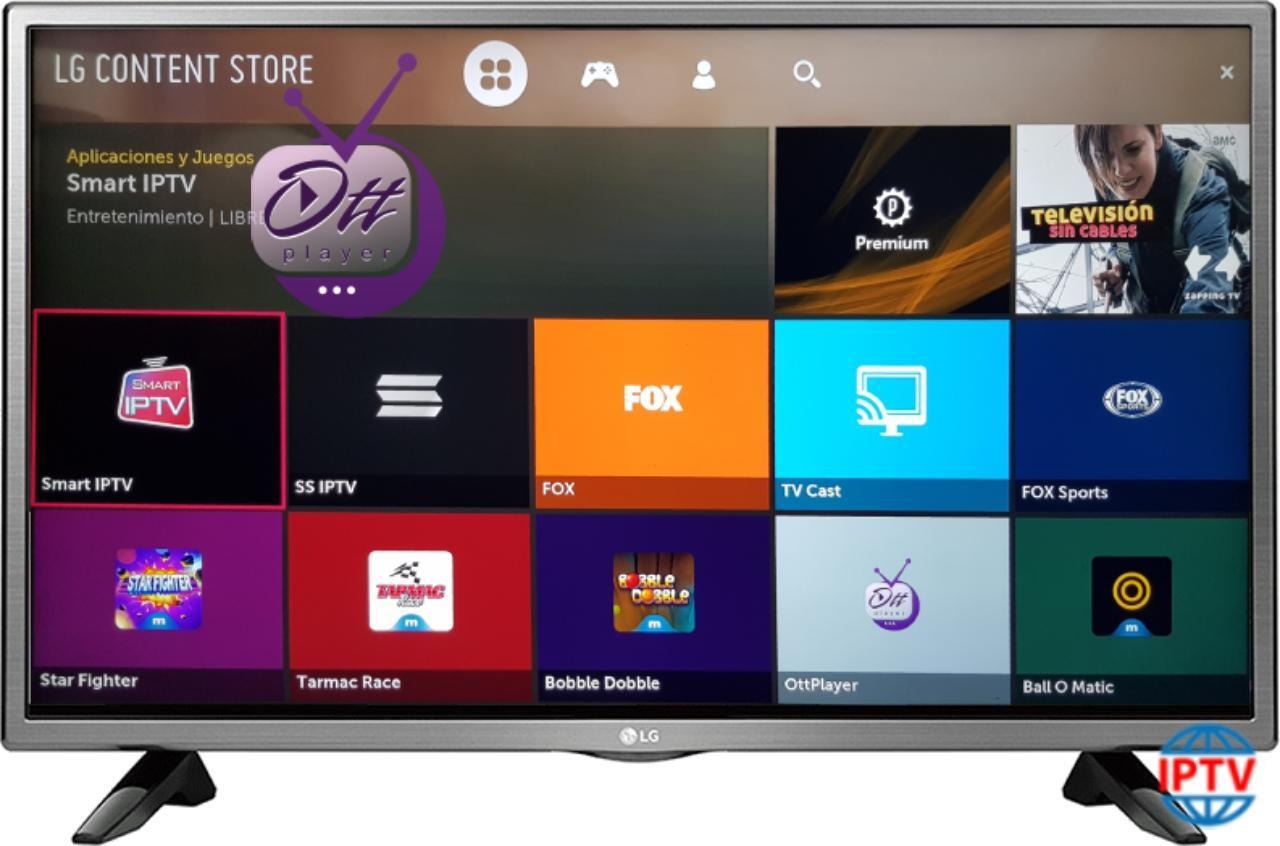
Go to the LG Content Store and install IPTV Smarters Pro or IBO Player.
Enter your login details and load your channel list. The process is similar to Fire Stick and very easy to follow.
LG TVs offer smooth navigation, especially with the Magic Remote, making browsing channels faster and more comfortable.
Install TiviMate from the Google Play Store.
Add your playlist using your credentials and set the timezone correctly. You can also create a favorites list for easier navigation.
Android TV devices generally provide the best IPTV experience, especially when connected via ethernet.
Download IPTV Smarters Pro from the App Store.
Enter your login details and start watching. If streaming over mobile data, lowering the video quality can help reduce buffering.
Install IPTV Smarters Pro or IBO Player from Google Play.
Enter your credentials and you’re ready to go. Android devices allow switching between video players, which can improve playback performance.
Login not working:
Check for typing errors and make sure credentials match exactly.
Channels not playing:
Switch the video player inside the app or check your internet.
Wrong timing:
Set timezone to Europe/Amsterdam.
Buffering issues:
Use ethernet instead of WiFi or reduce streaming quality.
Once your IPTV is set up properly, there’s almost no maintenance required. Just refresh your channels occasionally and keep your subscription active.
After testing the service and confirming everything runs smoothly, you can move to a full IPTV Abonnement Kopen starting with a monthly plan before choosing a longer-term option.
Setup time:
Usually 10–20 minutes depending on the device.
Multiple devices:
Yes, but it depends on your subscription plan.
Router setup needed:
No special configuration required.
IPTV setup may look complicated at first, but in reality, it’s simple once you follow the correct steps. Most issues come from small mistakes like wrong timezone settings or weak internet connections.
Once everything is configured properly, the experience becomes smooth and hassle-free—just open the app and start watching.