Do you have stacks of notebooks filled with valuable ideas, meeting minutes, or lecture notes? While handwriting can help with memory, physical notes are hard to search, edit, and share. Turning them into digital text unlocks their full potential, making your information accessible and organized. This guide will walk you through the entire process, step by step.
Converting your notes is easier than you might think. With the right tools and techniques, you can transform pages of handwriting into editable documents on your computer or cloud drive. This allows you to easily find specific information, copy and paste key points, and back up your work securely. Say goodbye to digging through old notebooks and hello to a searchable digital archive.
Follow these six steps to accurately convert your handwritten notes into a clean, editable digital format. Taking the time to prepare your notes properly will save you a lot of editing later.
The quality of your digital text depends heavily on the quality of your original notes. Before you even think about scanning, take a few minutes to prepare the pages. Ensure the handwriting is as clear as possible. If you have to, go back and neaten up any scribbled words or hard-to-read letters.
Use a pen with dark ink on light-colored, unlined paper for the best contrast. Smooth out any wrinkles or creases in the paper, as these can create shadows and distort the text during capture. If your notes are in a binder, remove them so the page can lie completely flat. This simple prep work is the foundation for a successful conversion.
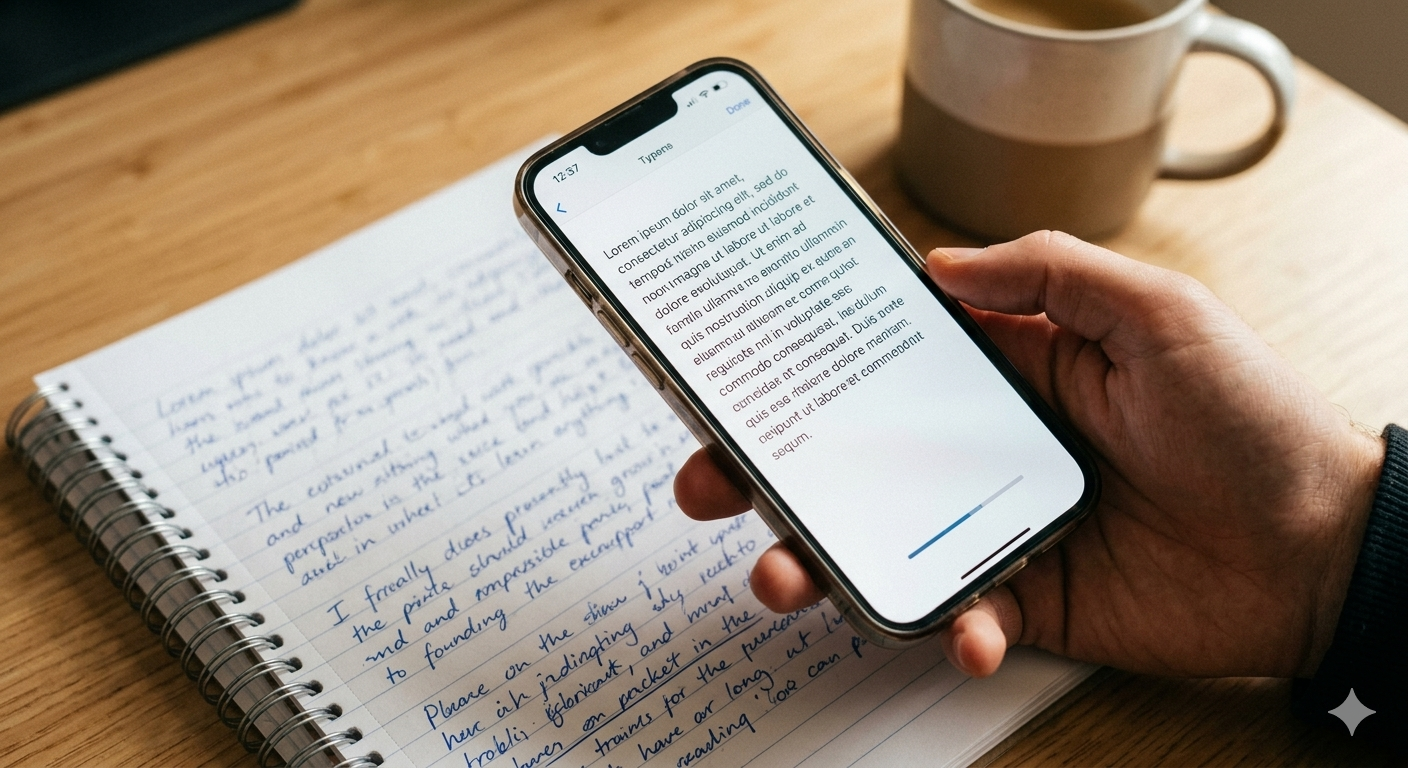
You can use either a smartphone camera or a flatbed scanner to capture an image of your notes. Modern smartphone cameras are incredibly powerful and convenient for this task. If you use your phone, make sure you have excellent lighting. Natural daylight is best, but a well-lit room without harsh overhead lights will also work.
Place the note on a flat, dark surface to create a clear contrast around the edges of the paper. Position your phone directly above the page to avoid skewed angles. Tap the screen to focus on the text and ensure the entire image is sharp and clear. Avoid shadows from your hand or phone. If you have a flatbed scanner, use a resolution of at least 300 DPI (dots per inch) for a high-quality scan.
Once you have a clear image, you need a tool to perform Optical Character Recognition (OCR). This is the technology that analyzes the image and translates the handwritten shapes into digital characters. Many online tools and apps are available for this purpose. Look for a service that specializes in an accurate image to text conversion process for handwriting, as it is more complex than printed text.
When choosing a tool, consider its accuracy, ease of use, and privacy policy. Some advanced tools use AI to better recognize different handwriting styles, leading to fewer errors in the final output. Free online converters are great for quick jobs, while dedicated software might offer more features for those who need to convert notes regularly.
The conversion process is usually straightforward. You'll navigate to the OCR tool's website or open the application and find an "Upload" button. Select the high-quality image file you saved in Step 2. Most tools support common image formats like JPG, PNG, and PDF. After uploading, the tool will begin analyzing the document to extract text from images.
This analysis can take a few seconds to a minute, depending on the complexity of the handwriting and the length of the note. The software scans the page, identifies individual letters and words, and reconstructs them into editable text. Once the process is complete, the tool will display the extracted text in an editor window on the screen.
No OCR tool is perfect, especially with varied handwriting. This step is critical for ensuring accuracy. Carefully read through the converted text and compare it against your original handwritten note. Look for common errors, such as misidentified letters (like 'o' instead of 'a', or 'l' instead of 'i') or words that were combined incorrectly.
Make any necessary corrections directly in the editor provided by the tool. Pay close attention to punctuation, spacing, and formatting. The clearer your original handwriting, the less time you'll spend on edits. This proofreading stage ensures that your final digital document is a reliable and accurate representation of your original thoughts.
After you've reviewed and edited the text to your satisfaction, it's time to save your new digital note. Most OCR tools allow you to copy the text to your clipboard or export it in various formats, such as .TXT, .DOCX (for Microsoft Word), or .PDF. Choose the format that best suits your needs. A .DOCX file is great for further editing, while a .TXT file is simple and universal.
Create a logical folder structure on your computer or cloud storage (like Google Drive or Dropbox) to keep your digital notes organized. Use a clear and consistent naming convention for your files, perhaps including the date and topic (e.g., "2024-10-28_Marketing-Meeting-Notes.docx"). This makes it easy to find what you're looking for later with a simple search.
* Write Clearly: Print is generally easier for OCR to recognize than cursive.
* Use Good Contrast: Always use dark ink on plain, light-colored paper. Avoid colored paper or pens that are running low on ink.
* Avoid Clutter: Try not to doodle or draw diagrams on the same page as the text you want to convert.
* Batch Your Work: If you have many pages to convert, scan them all at once and then process them in a batch to streamline your workflow.
* Check the Language: If your notes are in a language other than English, ensure your OCR tool supports it.
* Using Low-Resolution Images: A blurry or pixelated image is the number one cause of poor conversion results. Always ensure your photo or scan is sharp.
* Scanning in Poor Lighting: Shadows or glare can obscure parts of the text, making it unreadable for the OCR software.
* Skipping the Proofreading Step: Assuming the converted text is 100% accurate is a mistake. Always review the output to catch and correct errors.
* Ignoring Formatting: After conversion, your text might lose its original formatting, such as paragraphs and bullet points. Take a moment to reformat the document for readability.
Converting your handwritten notes into digital text transforms them from static, inaccessible pages into dynamic, searchable resources. By following this guide, you can create an organized digital library of your ideas, making it easier than ever to find, use, and build upon your work. The small effort it takes to digitize your notes pays off immensely in productivity and peace of mind.