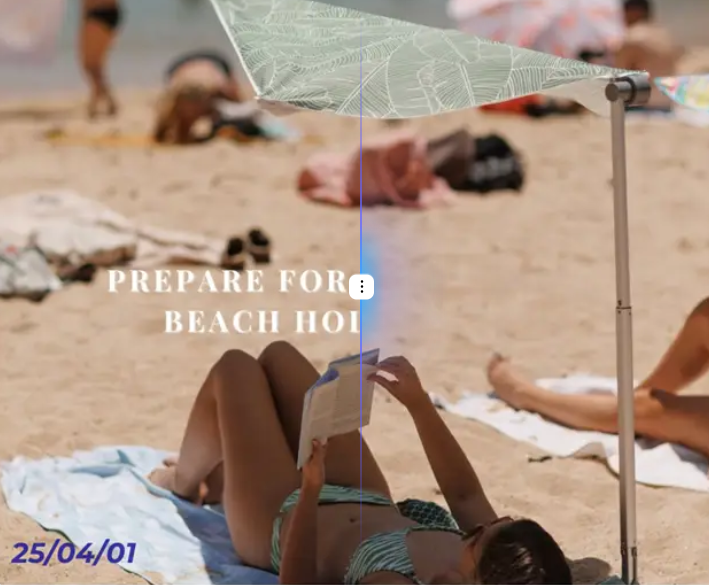
You’ve captured a stunning photo of a historic landmark or a beautiful beach, but a crowd of strangers has ruined the shot. It’s a common frustration for travelers and photographers. In the past, removing unwanted people from an image required advanced Photoshop skills and hours of tedious work. Today, AI-powered tools make it possible for anyone to achieve professional results in just a few clicks.
These powerful platforms analyze your image and intelligently reconstruct the background behind the person you want to remove. Using a simple brush tool, you can highlight unwanted objects or people, and the AI will erase them seamlessly. This guide will walk you through the entire process, helping you create the perfect, crowd-free travel photos you’ve always wanted. With the right online Magic Eraser, you can clean up your favorite shots effortlessly.
Getting that perfect, clean shot is easier than you think. AI tools have simplified a once-complex editing task into a few straightforward steps. Follow this guide to Remove People from Photos and rescue your images from distracting crowds.
Before you start editing, choose the best candidate photo. While AI is powerful, it works best with certain types of images. Look for a photo where the people you want to remove are not the main focus and do not cover a huge portion of a complex subject. For example, removing a few people walking in the background of a photo of the Eiffel Tower is much easier than removing someone standing directly in front of a detailed statue.
Choose a high-resolution image whenever possible. The more detail the AI has to work with, the more accurate and natural the final result will be. A blurry or low-quality photo can lead to a smudged or distorted background after the removal process.
Once you have your photo, the next step is to upload it to a web-based AI removal tool. Most of these platforms are designed for simplicity. You'll typically see a large "Upload Image" button on the homepage. You can either drag and drop your photo directly onto the web page or click the button to browse the files on your computer or phone. The process is quick, secure, and requires no software installation.
After your image is uploaded, it will appear in the editor. You'll have access to a brush or a marker tool. Your goal is to "paint" over the person or people you wish to remove. Click and drag your mouse to cover the entire person, including their clothes, hair, and any bags they might be carrying.
Don't worry about being perfectly neat, but try to cover the whole person without highlighting too much of the surrounding area. Most tools will show a colored overlay, often red or yellow, so you can see exactly what you’ve selected. If you make a mistake, look for an "Undo" button or an eraser to refine your selection.
For the best results, adjust the size of your brush. Use a larger brush for big areas like a person's torso or legs. This helps you cover the area quickly and efficiently. When you get to the edges or smaller details, such as the space between an arm and the body, switch to a smaller brush size.
This precision prevents the AI from removing parts of the background you want to keep. Zooming into the photo can also help you see these details more clearly, allowing you to make a more accurate selection. Taking a few extra seconds to get the selection right will pay off in the final image.
With the unwanted person fully highlighted, you're ready for the magic. Click the "Erase" or "Remove" button. The AI will take a few seconds to analyze your selection and the surrounding pixels. It then intelligently generates a new background to fill in the space where the person was.
The technology is sophisticated enough to understand patterns, textures, and lighting. It will attempt to continue lines from buildings, replicate the texture of sand or grass, and match the sky's color gradient. The result is a clean image where it looks like the person was never there in the first place.
Once the AI has finished, take a close look at the edited area. Zoom in and check for any smudges, strange patterns, or blurry spots. In most cases, the result is excellent on the first try. However, if you see any imperfections or leftover artifacts, you can often run the process again.
Simply use the brush tool to highlight the small, imperfect area and click "Erase" one more time. This allows the AI to make a second pass and further refine the background. You can repeat this process as many times as needed until you are completely satisfied with the outcome.
The final step is to save your work. Look for a "Download" button, which usually appears after the editing process is complete. You can typically download the image in high resolution, ready to be shared on social media, printed, or saved in your travel album. You now have a beautiful, professional-looking photo without any distracting strangers.
While AI tools are incredibly effective, a few techniques can help you achieve even better results.
Even with simple tools, it's easy to make small mistakes that can impact your final image. Here are some common errors and how to avoid them.
Forgetting to remove small, related objects can ruin the effect. For example, you might successfully remove a person from a beach photo but forget to erase their footprints in the sand. Similarly, if a person is holding a bag or a phone, make sure that is included in your selection. Always double-check the entire scene for anything connected to the person you removed.
While you don't need to be perfectly precise, a very messy selection can cause problems. If you highlight too much of the background around a person, the AI might get confused and generate a blurry or smudged result. Take your time to create a reasonably tight selection around the subject for the cleanest outcome.
If you're removing a person standing near water, glass, or any reflective surface, don't forget to remove their reflection too. A person disappearing from a scene but leaving their reflection behind is an instant giveaway that the image has been altered. Treat the reflection as part of the person and highlight it for removal.
Attempting to edit a pixelated or low-resolution photo will almost always lead to poor results. The AI needs sufficient data to understand what the background should look like. If the source image is too blurry, the AI can't generate a convincing replacement, often resulting in a messy-looking patch. Always start with the highest quality photo you have available.
Expecting Perfection on Extremely Complex Backgrounds
AI is powerful, but it has limits. If a person is standing in front of an incredibly intricate pattern, like a complex mosaic or a detailed iron fence, the AI may struggle to perfectly replicate the background. In these scenarios, you might see some minor distortions. It's best to set realistic expectations for photos with very busy or detailed backgrounds.
Conclusion
You no longer need to be an editing expert to create perfect, crowd-free photos. With the power of AI-driven tools, anyone can remove unwanted people and objects from their favorite travel pictures in minutes. By following the simple steps of uploading your photo, highlighting the distractions, and letting the AI work its magic, you can transform a good shot into a great one.
Remember to use high-quality images and pay attention to details like shadows and reflections for the most professional results. Now you can capture memories at popular tourist spots without worrying about strangers getting in the way.